
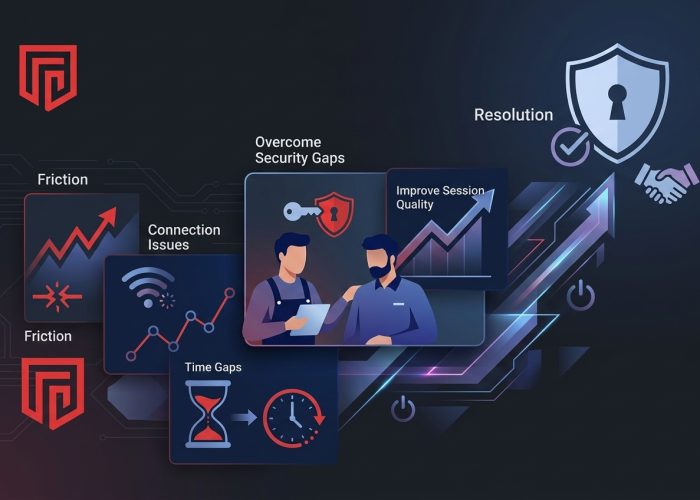
Remote support has become a cornerstone of how IT teams operate, but it is far from frictionless. Even with capable tools and experienced technicians, a range of challenges can undermine session quality, create security gaps, or frustrate the users being supported. Recognizing these challenges clearly and knowing how to address each one is what separates reactive IT teams from proactive ones.
This article examines the most common difficulties encountered in remote support environments and offers concrete approaches for overcoming them.
Unattended remote support without end-user involvement introduces its own distinct set of risks and requirements, but even attended sessions carry challenges that demand careful planning. Both modes are addressed here.
Poor Session Performance Due to Network Conditions
Unstable or slow connections are the most frequently encountered obstacle in remote support. When a session is laggy, screens freeze, inputs are delayed, and technicians cannot work effectively. Users lose confidence in the support experience, and resolution times balloon.
The root cause is nearly always network-related, insufficient bandwidth, high latency, or packet loss on either the technician’s or the user’s side. A single remote session is not especially bandwidth-intensive under normal conditions, but competing traffic on the same connection can squeeze available throughput enough to degrade quality meaningfully.
Understanding how network latency works is important for IT teams configuring remote support infrastructure, since the delay between action and response in a session is directly shaped by latency at multiple points in the connection path, not just at the user’s endpoint.
To overcome this, choose a remote support platform that includes adaptive quality settings, one that automatically reduces image resolution and frame rate when bandwidth is constrained rather than allowing the session to become unresponsive. Educate technicians to recognize the signs of network degradation and to guide users through basic troubleshooting steps when connectivity is causing problems. For recurring performance issues with specific users or locations, investigate the root cause, which is often a shared network, Wi-Fi interference, or an ISP issue, rather than treating it as an inevitable limitation.
Difficulty Connecting to Devices Behind Firewalls or Strict Network Policies
Many client environments are configured with restrictive firewall rules, proxy settings, or network segmentation policies that block remote support connections. The agent attempts to connect and either fails silently or produces an error that provides little diagnostic information. This is particularly common in financial services, healthcare, and government environments where network administrators have locked down outbound and inbound traffic aggressively.
The solution starts at the platform selection stage. Reliable remote support solutions route connections through a secure relay infrastructure that does not require inbound firewall ports to be opened on the client side, making them far more compatible with restrictive network environments. Before deploying to a new client environment, confirm the solution’s network requirements and test connectivity in that environment specifically.
When deploying to environments with known restrictions, involve the client’s network team early. Sharing the connection requirements in writing before attempting any session allows firewall rules to be updated proactively rather than troubleshooting them reactively during a live support window.
Securing Unattended Access Without Creating Persistent Risk
Unattended remote access, where technicians can connect to a device at any time without the user present, is invaluable for server maintenance, after-hours patching, and managing unstaffed locations. It is also the access mode that carries the greatest security risk if not properly governed. A misconfigured or broadly scoped unattended access deployment creates a standing entry point that, if compromised, grants an attacker persistent access to organizational systems.
When evaluating cybersecurity solutions, it’s crucial to understand how enterprise endpoint security works to safeguard your network. To mitigate this risk, scope unattended access narrowly. Each technician should be able to connect only to devices they actively need to access for their role, no broad grants. Multi-factor authentication must be enforced for all accounts with unattended access privileges. Access lists should be audited regularly and revoked promptly when a technician’s role changes or they leave the organization. Dormant unattended access endpoints devices that haven’t been connected to in months should be reviewed and deprioritized or removed from the unattended list.
Users Blocking or Disrupting Support Sessions
Attended remote support depends on user cooperation. Some users reflexively close connection prompts, become concerned about privacy, and refuse to accept the session, or disconnect partway through when they do not understand what is happening. This is not an obstruction; it is a predictable human response to an unfamiliar and somewhat unsettling experience, namely watching someone else control their computer.
The solution is almost entirely communicative. Users who understand exactly what is about to happen, what the technician will be able to see and do, and how long the session is expected to last are far more likely to cooperate. Brief your users before initiating a session, either through a prior email or a quick explanation at the start of the call. Use platforms that display a visible indicator during the session so the user can see the connection is active and can observe what the technician is doing. Avoid making changes to files or settings that are unrelated to the reported issue, as users notice and become concerned.
For organizations with recurring resistance, consider including a short explanation of remote support in the IT onboarding process so employees understand the capability before they ever need it.
Incomplete or Missing Session Records
Audit and accountability gaps emerge when session logging is not configured correctly or enforced consistently. Technicians may close sessions before logs are written, logging settings may differ between machines, or a platform may only retain session data for a short period before purging it. When a compliance audit or an internal investigation requires session records, gaps in the log become a serious problem.
The fix requires a deliberate configuration decision rather than accepting platform defaults. Enable session logging as a mandatory, non-configurable setting for all accounts, not something technicians can turn off. Confirm that logs capture the full metadata required: technician identity, device identifier, session start and end time, and any notes added post-session. For organizations with compliance obligations, enable full session recording and verify that the retention period aligns with regulatory requirements. Test the logging configuration periodically by reviewing a sample of recent session records for completeness.
Technician Skill Gaps Revealed Under Pressure
Remote support removes the safety net of physical presence. When a technician sits in front of a machine, they can observe what is happening directly and draw on environmental cues. Remotely, they depend entirely on what the screen shows them and what the user tells them, which is often incomplete or inaccurate. Technicians who are capable in person sometimes struggle to adapt their diagnostic process to this more constrained information environment.
The answer is structured training and documented runbooks. Develop session templates for the most common issue types: connectivity problems, application failures, account access issues, and printer configuration, so technicians have a consistent starting point rather than improvising every time. Record high-quality sessions as training examples and review them in team debriefs. Pair less experienced technicians with senior staff for complex cases until they develop the judgment to navigate ambiguous remote situations independently.
Frequently Asked Questions
What should IT teams do when a remote session is too slow to be useful?
First, ask the user to close any bandwidth-heavy applications running in the background. If performance does not improve, reduce the session quality settings within the remote support tool. If the problem persists across multiple sessions with the same user, investigate the underlying network shared connections, Wi-Fi interference, and ISP throttling, as they are common culprits worth addressing directly.
How can organizations prevent unattended remote access from becoming a security liability?
Apply least-privilege access so each technician can only connect to devices they actively manage. Enforce multi-factor authentication on all accounts with unattended access. Conduct quarterly audits of all unattended access configurations and remove permissions that are no longer needed. Monitor session logs for connections outside normal working hours or from unfamiliar locations.
Why do users sometimes refuse or interrupt remote support sessions, and how can this be reduced?
Most user resistance comes from unfamiliarity and a lack of information about what is happening. Explaining the process clearly before initiating a session, choosing platforms that make the active connection visible to the user, and limiting technician actions to what is directly relevant to the reported issue all significantly reduce hesitation and mid-session disconnections.