

As an entrepreneur, your Mac is more than just a device—it’s your go-to tool for running your business efficiently. However, even Macs, known for their reliability, can encounter issues from time to time.
The key is knowing how to troubleshoot problems without relying on outside help for every minor issue.
In this guide, we’ll cover some simple yet effective troubleshooting tips that every business owner should know. These tips can help keep your Mac running smoothly, ensuring your workflow remains uninterrupted.
Restart: The Most Reliable Quick Fix
A restart is often the quickest fix for performance issues such as slowdowns, unresponsive apps, or strange behavior.
Restarting your Mac clears temporary system files, refreshes memory, and closes any processes that might be causing problems. It’s a simple action but can resolve various issues, from minor glitches to system freezes.
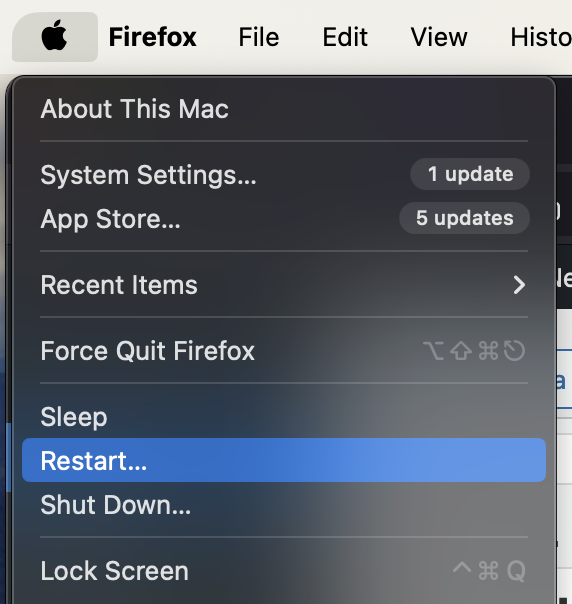
To restart, click on the Apple menu, select “Restart,” and let your Mac reboot.
If your system is completely frozen, holding the power button for a few seconds will force it to shut down.
Free Up RAM and Close Background Apps
Running multiple apps can drain your Mac’s resources, particularly its Random Access Memory (RAM). When the system runs out of RAM, it starts to slow down. This is why it’s important to check what’s using your memory.
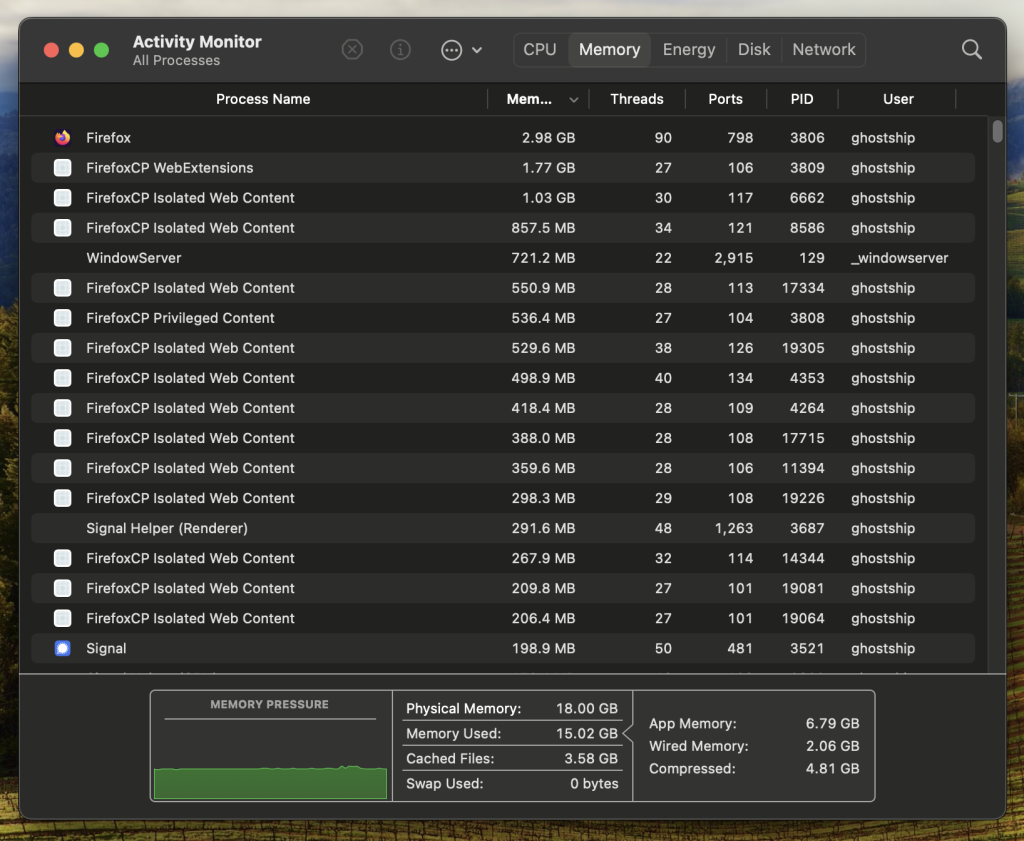
You can do this by opening Activity Monitor (found in the Applications folder under Utilities). In the Memory tab, you’ll see how much RAM each app is using. If something is taking up too much memory, close the unnecessary apps to free up space and improve performance. Keeping RAM usage under control will ensure faster response times.
The Right Tools to Save Time and Reduce Stress
As an entrepreneur, time is your most valuable asset. You need quick and effective solutions to keep your Mac running smoothly. When faced with common problems like CoreServicesUIAgent not closing, having access to reliable knowledge and tools can make all the difference.
For instance, if you ever encounter coreservicesuiagent won’t close an issue, refer to the trusted online guides. It explains quick solutions that will help you get back to work quickly. Tools that handle system errors and monitor performance can keep your Mac in check so you can focus on what matters—running your business efficiently.
Fixing Network Issues
Entrepreneurs rely on a stable internet connection to get work done. When your Mac struggles to connect, or the internet is slow, it can disrupt your day. First, try turning your Wi-Fi off and on by clicking the Wi-Fi icon in the menu bar.
If that doesn’t solve the issue, try resetting the network settings by heading to System Preferences > Network, then selecting your network and clicking “Advanced” to reset the connection.
You can also restart your router. If these basic steps don’t work, check your ISP’s connection or look for software updates for your network drivers.
Keep Your Software Updated
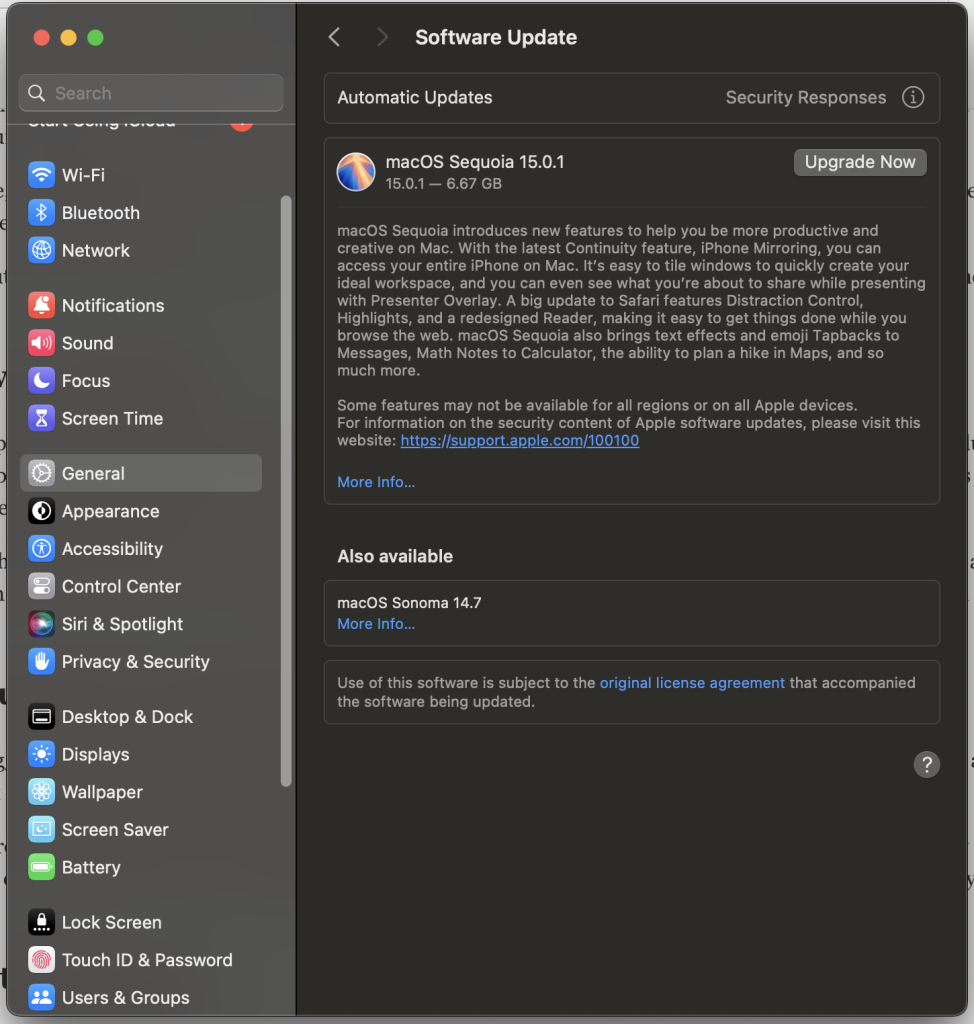
Staying on top of software updates is critical for running the system at peak performance. Apple regularly releases updates that include important security patches, bug fixes, and performance improvements. By keeping your macOS and apps updated, you avoid issues related to software compatibility and security vulnerabilities.
To check for updates, go to the Apple menu, select “System Preferences,” and then click on “Software Update.” You can also enable automatic updates to ensure the system runs the latest software. This proactive step helps prevent future problems while keeping your system safe and efficient.
Disk Utility: A Quick Fix for Disk Problems
If your Mac starts acting sluggish or has trouble recognizing external drives, Disk Utility can help. Disk Utility is a built-in tool that allows you to verify and repair disks, fix permissions, and resolve errors that may cause poor performance.
To use it, open Disk Utility from the Utilities folder in Applications. Select your main disk, then click on “First Aid” to check for any issues and repair them. This tool is especially useful if you’re dealing with disk-related errors or startup issues. Using Disk Utility regularly can help keep drives healthy.
Backup Your Data Regularly
Backing up your data is a safety net you should never ignore. Whether you’re dealing with a system crash or accidental file deletion, having a reliable backup ensures you won’t lose important business information.
Apple’s built-in Time Machine tool is an easy way to create automatic backups of your entire system. You can also use cloud storage services like iCloud, Google Drive, or Dropbox for additional security. Setting up regular backups means you won’t have to worry about losing files when technical issues arise. It’s a simple but essential step to safeguard your business.

Conclusion
Basic Mac troubleshooting is vital for every entrepreneur. With the right knowledge, you can solve common issues quickly and minimize downtime. Staying proactive with system maintenance ensures smooth performance and keeps your business running efficiently. A little know-how goes a long way in avoiding costly disruptions.